
Booking Leads 5.99.67 takes care of two key moments: your first minutes with the plugin, and every update that follows.
I wanted a new customer to always know where they stand. From pasting their key to their first calendar.
And I wanted your leads to stay yours, even when you reinstall the plugin.
It all arrives in one click, from the update banner in your WordPress. Your calendars, leads and settings stay in place.
In this release
A welcome that guides you from installation
As soon as you activate it, Booking Leads opens on its own. A welcome screen is waiting for you.
You paste your license key. One click, and you’re off.
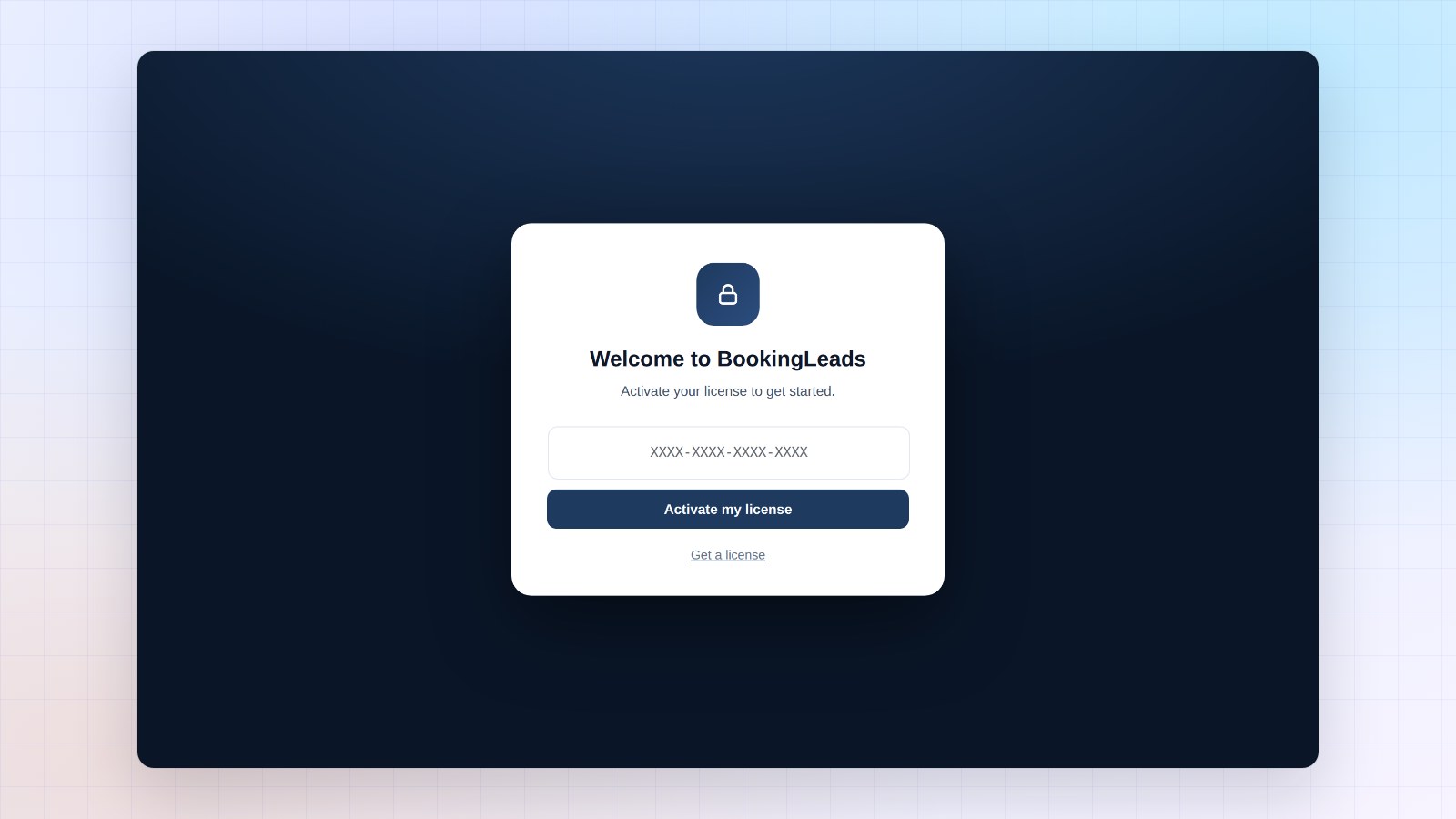
The rest follows on its own. The wizard opens straight on choosing your calendar. The License step is already checked.
One decision per screen. You pick your calendar, your form, your CRM and your design. Then you go live.
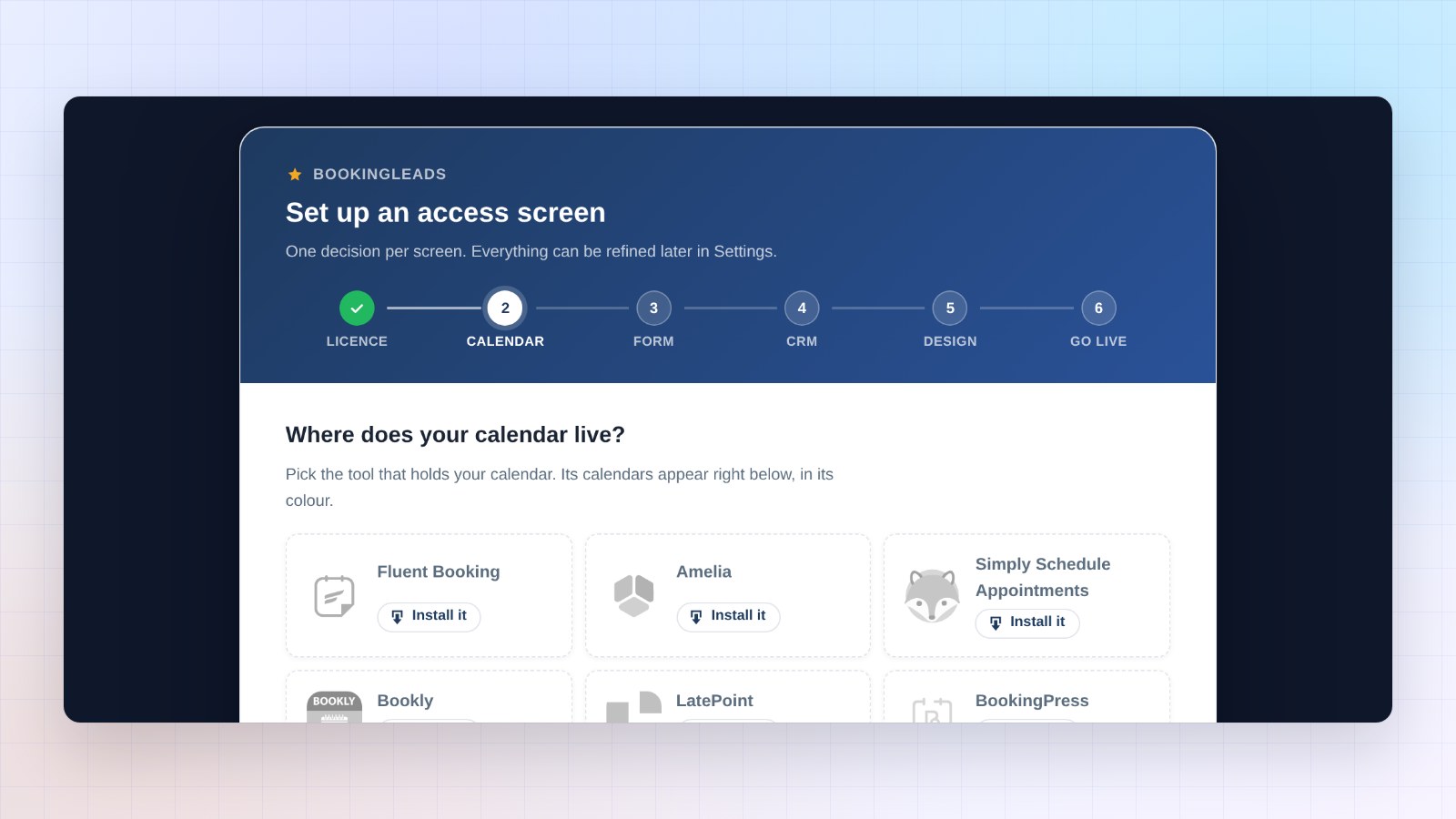
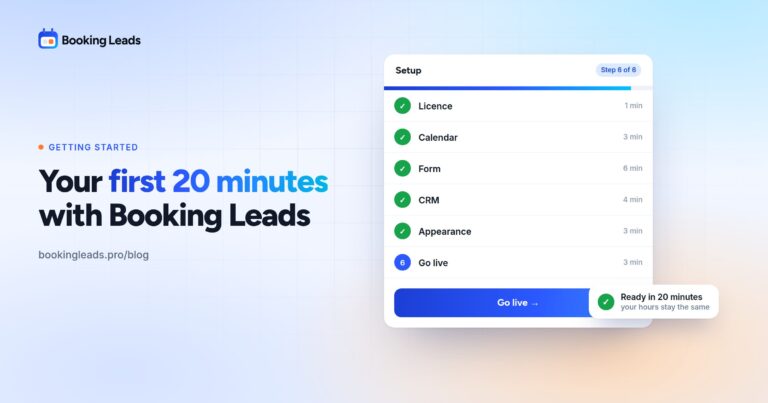
Every step is explained in your first 20 minutes with Booking Leads.
Your leads and license stay in place
Sometimes you delete a plugin to reinstall it. With Booking Leads, you do it with peace of mind.
Your leads, settings and license stay in your WordPress database. When you reinstall, everything is there. You don’t even need to enter your key again.
Prefer a fresh start? A setting takes care of it, in Settings, Data section: “On uninstall”.
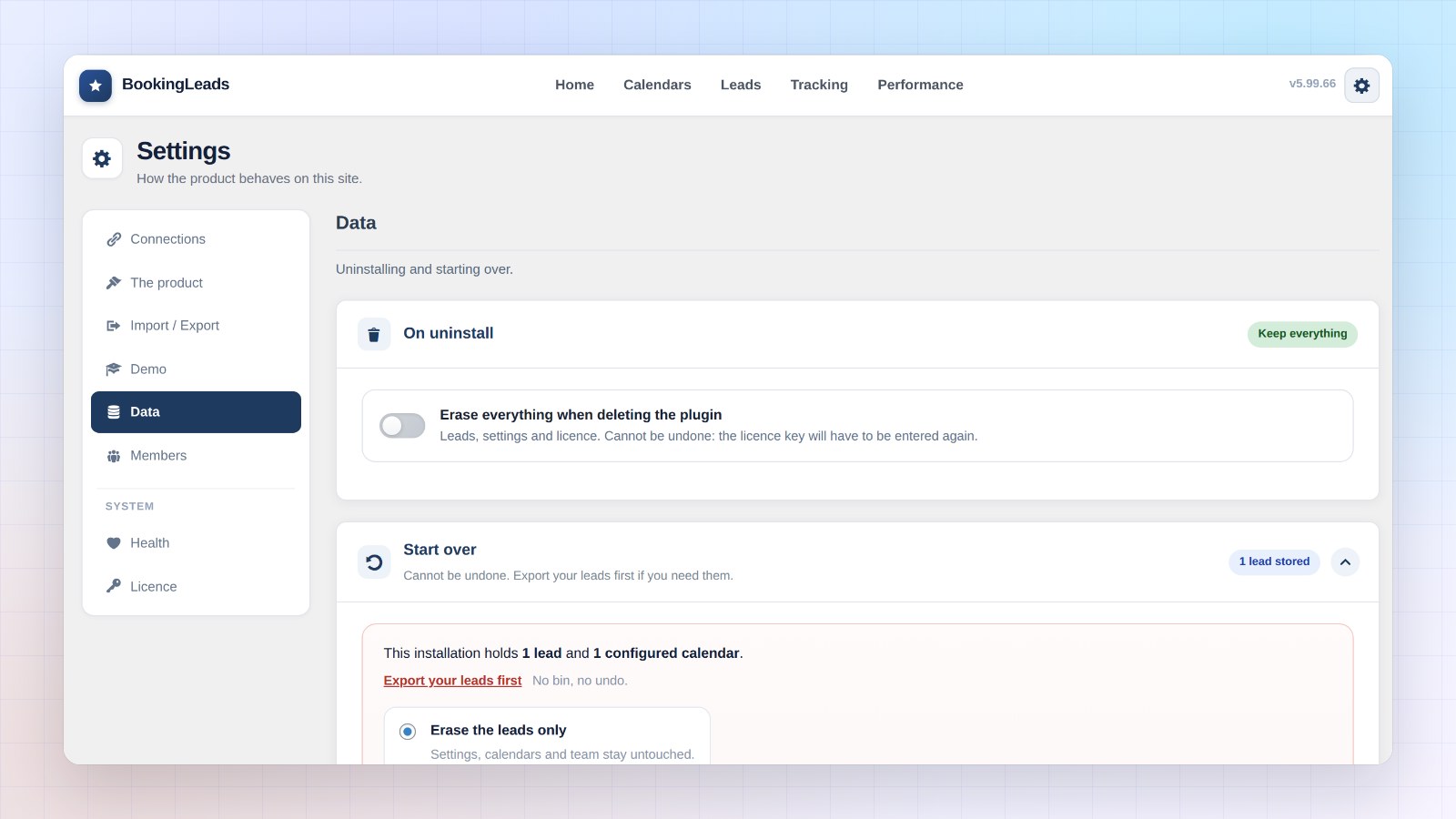
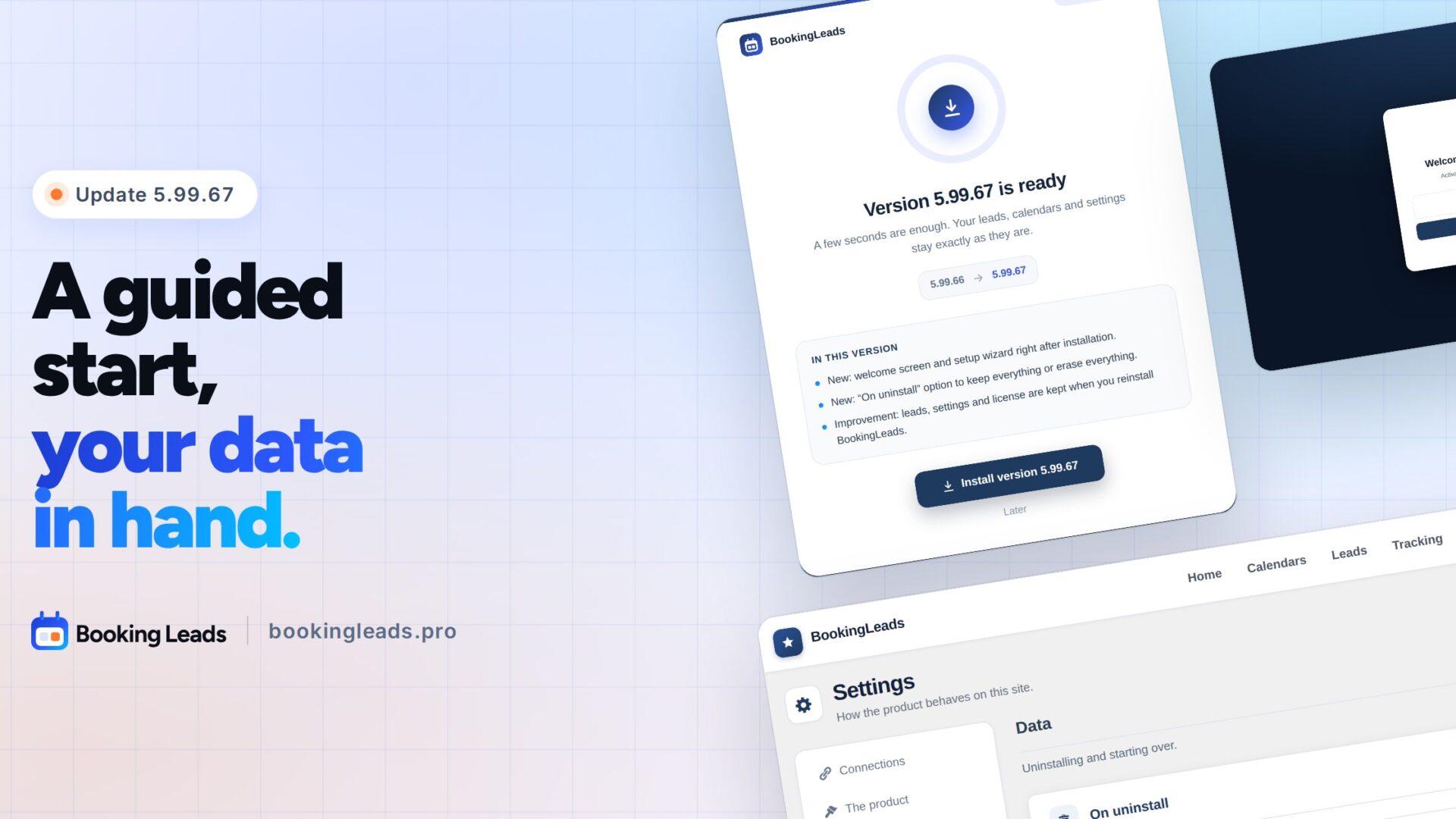
Off, the badge reads “Keep everything”. On, it reads “Erase everything”: deleting the plugin then erases everything cleanly, license included.
The setting saves on click. On a multisite network, each site decides for itself.
A brand new update screen
Your next updates install on a brand new screen that fills the whole page.
You see your version, the new one, and what it brings you. One click, and a circle fills up. Download, installation, restart: each step lights up in turn.
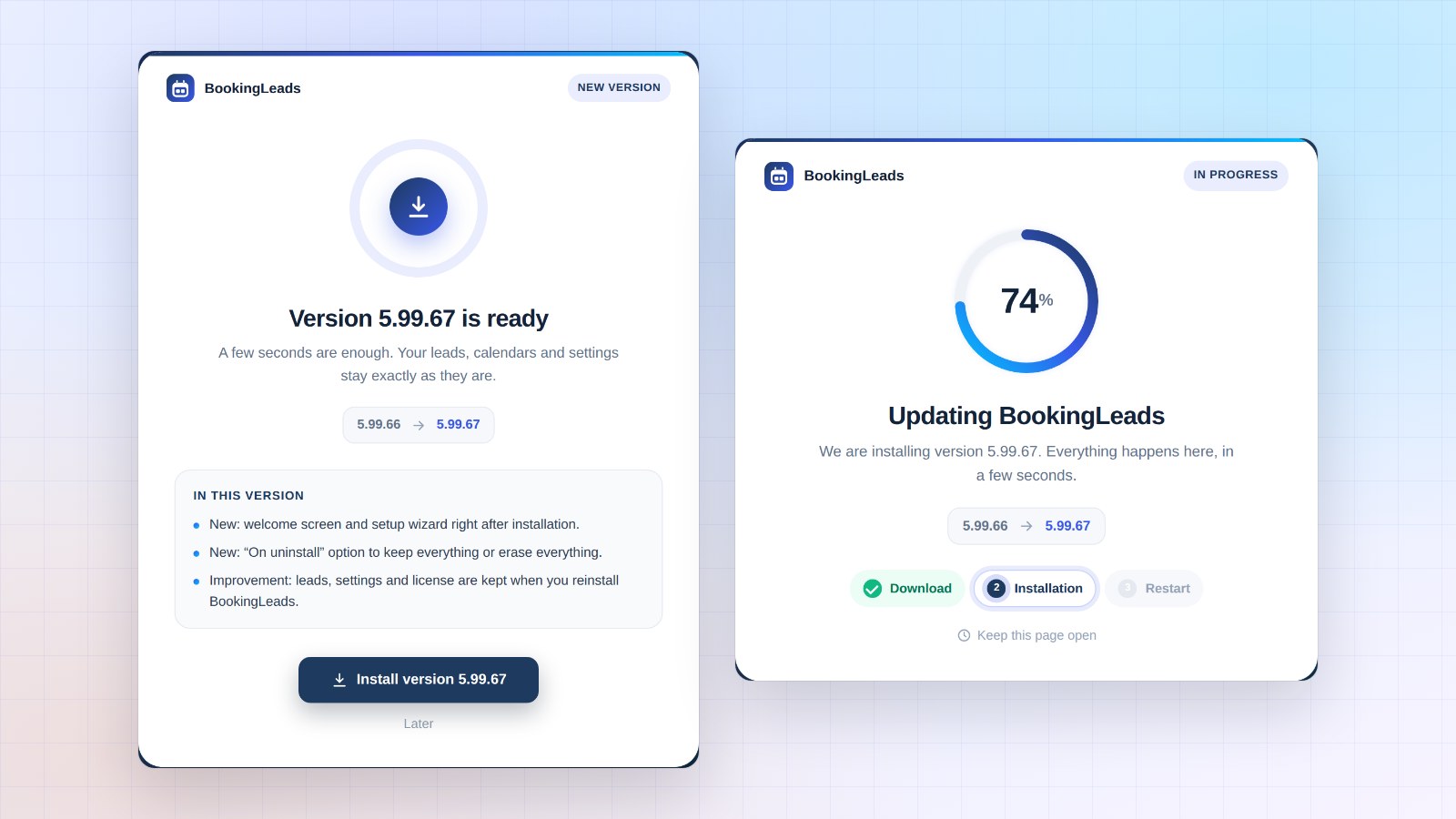
A few seconds later, you’re back on your dashboard. The banner button and the one on the License screen both lead here.
What was polished
- Right after you activate your license, the dashboard opens on the first try.
- The “Reset” settings section is now called “Data”, like in our other plugins.
- Your browser tab title shows in your language during the update.
How to update Booking Leads
The banner appears in your WordPress admin. One click on “Update now”, and you’re done.
Your license, calendars, leads and statistics are kept. The update is included in your license.
This update still goes through the previous screen. The new one welcomes you from the next release.
First minutes that count
This release saves you time where it matters most: day one.
You install, paste your key, and the wizard takes you to your first access screen.
From the very first visitor, Booking Leads keeps their contact and scores their answers. It hands the request to the right rep. And you follow every appointment through to the deal.
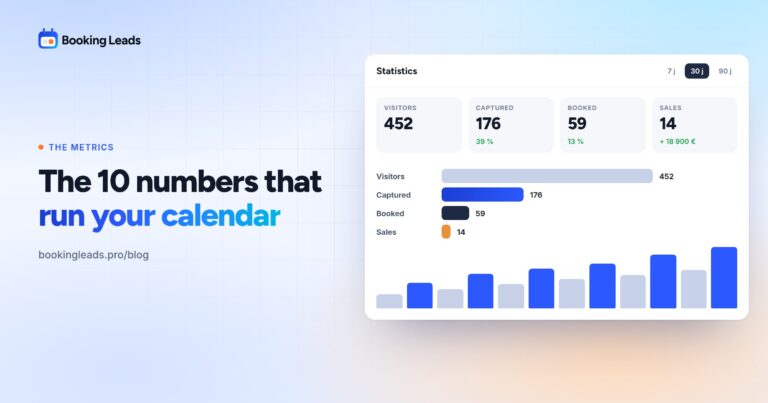
Out of 100 visitors, 13 book. With the access screen, you keep 39. Three times more contacts, with the same traffic.
New to Booking Leads? Why I built Booking Leads tells the story behind it, and the 12 things Booking Leads does gives you the full tour. The Founder offers are on the home page.
Your questions about 5.99.67
Is the update included in my license?
Yes. Every update is included in your Booking Leads license.
Are my leads and settings kept during the update?
Yes. The update keeps your calendars, leads, statistics and settings. Your license stays active.
What happens to Booking Leads if I delete the plugin?
By default, everything stays in place: leads, settings and license. To erase everything, turn on “Erase everything when deleting the plugin” in Settings, Data section.
Do I need to run the wizard again after the update?
Your setup stays exactly as it is. The wizard only opens on its own on a site that is starting with Booking Leads.
How much does Booking Leads cost?
The price follows the number of sites, never the number of reps. All the offers are on the pricing page.